For this page I want to dedicate new content for this page based off of trending topics and events.

Photo Collage [April 28, 2020]
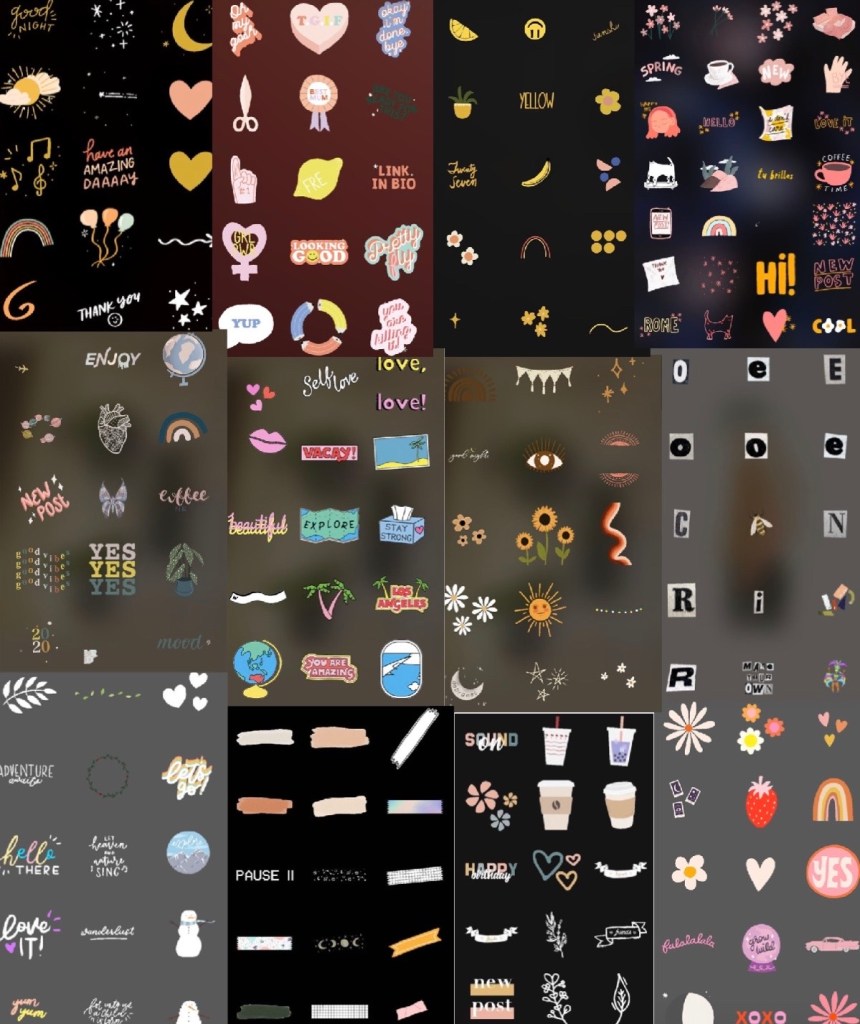
Instagram Gifs [May 5, 2020]
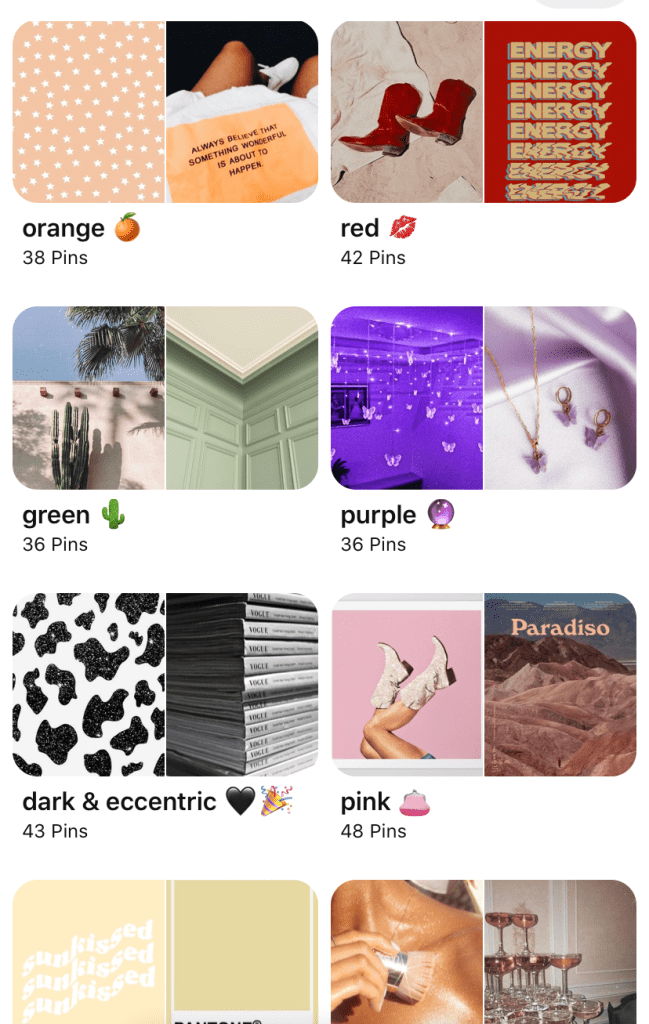
Color coded collage photos. [May 10, 2020]
NEWEST TO OLDEST:
Color Coded Collage Photos
May 10, 2020
Currently, a lot of people have been making collages whether interior or graphic design. As I am currently doing both for my social media in making editorial fashion collages to making a wall collage for my room, whatever the purpose maybe this is a great way to start engaging in topics like that. The board consists of other users’ content and is saved by colors: Red, pink, blue, green, yellow, purple, orange, dark/neon/dramatic, and nude. Under no circumstances do I own any rights to these photos as they were published for public use. I decided to color code based on the demand for it and the understanding that this was the easiest way to navigate through photo selecting.
Instagram GIFs
May 5, 2020
One way to decorate your Instagram story posts Is to add location, polls, questions, and mostly by using GIFs, but one of the flaws about using Instagram GIFs is that you don’t know where to find them. In my time I have compiled a list of keywords to use to get some of the most popular and my personal favorite GIFs of all. This list will be 12 titles for GIFs you can find and help decorate your stories with different themes and styles for everyone!
- Foopklo
- Collage
- Mikyla
- Boho
- Twentyseven
- The uncommon place
- Tapes
- Martinmartian
- Megantje
- Floweringwords
- Merelscorner
- gladdest
Photo Collage: How to start off
April 28, 2020
A lot have people have been getting into how to make photo collages and fashion collages and edits for multiple purposes. So today I thought I share my favorite editing app and my tips that I learn along the way to make your collages seem effortless. The app that I use is called PicCollage, and although it is free it does come with a logo on the corner of your pictures when you save your edit. My first tip is to use the freestyle part of the app, from there you upload your photos and move them around. To crop your photos use the effects tool and to cut your photos into different shapes using the cutting tool, the cutting tool also has the option of cutting out your own shapes which make for great use of having pictures ontop of each other without looking messy, before you save to lift the pictures above the icon on the bottom right so when you save and go to your photo library you can crop out the icon from your photos. I hope this helps if you decided to use this app, one of the many reasons I have been using it for so long is because it is easy, free, and trustful. Practice making your edits today!
 Victorias Blog